Amazon Shopping Assistant Study
Participant ID:All uploads complete!
Your Prolific completion code is:
You will be redirected to Prolific in 10 seconds.
Participant Instructions
What you are doing. You will run four shopping searches on Amazon.com in the Chrome browser on a desktop or laptop computer (mobile devices are prohibited). For each one you will save the web page to your computer and upload the saved mhtml file on this study page, where your four search phrases are shown. The whole task takes about 20 minutes. You must be signed in to your own personal Amazon account.
Your 4 assigned search phrases are on the "Your searches & uploads" tab at the top of this page. You can flip back and forth between the Instructions and "Your searches & uploads" tabs at any time and nothing gets lost.
Before you start
| Requirement | Detail |
|---|---|
| Computer | Desktop or laptop. Phones and tablets will not work for this task |
| Browser | Google Chrome, for both the study page and Amazon. Other browsers save pages differently and cannot be accepted |
| Account | Your own personal Amazon.com account, signed in |
| Time | About 20 minutes, in one sitting |
Please do not change how you normally shop. Do not clear your history, do not use a private or incognito window, and do not sign out. We are studying what real shoppers actually see, so your normal signed-in account is exactly what we need.
Order matters. Always do the regular search first with the assistant open and then the assistant. Do not do them the other way round.
Please now open Amazon in a second Google Chrome tab and sign into your account. Keep the study page open in its own tab, you will come back to it after every search.
Step by step with photos
Step 1. Open the assistant and start a new chat

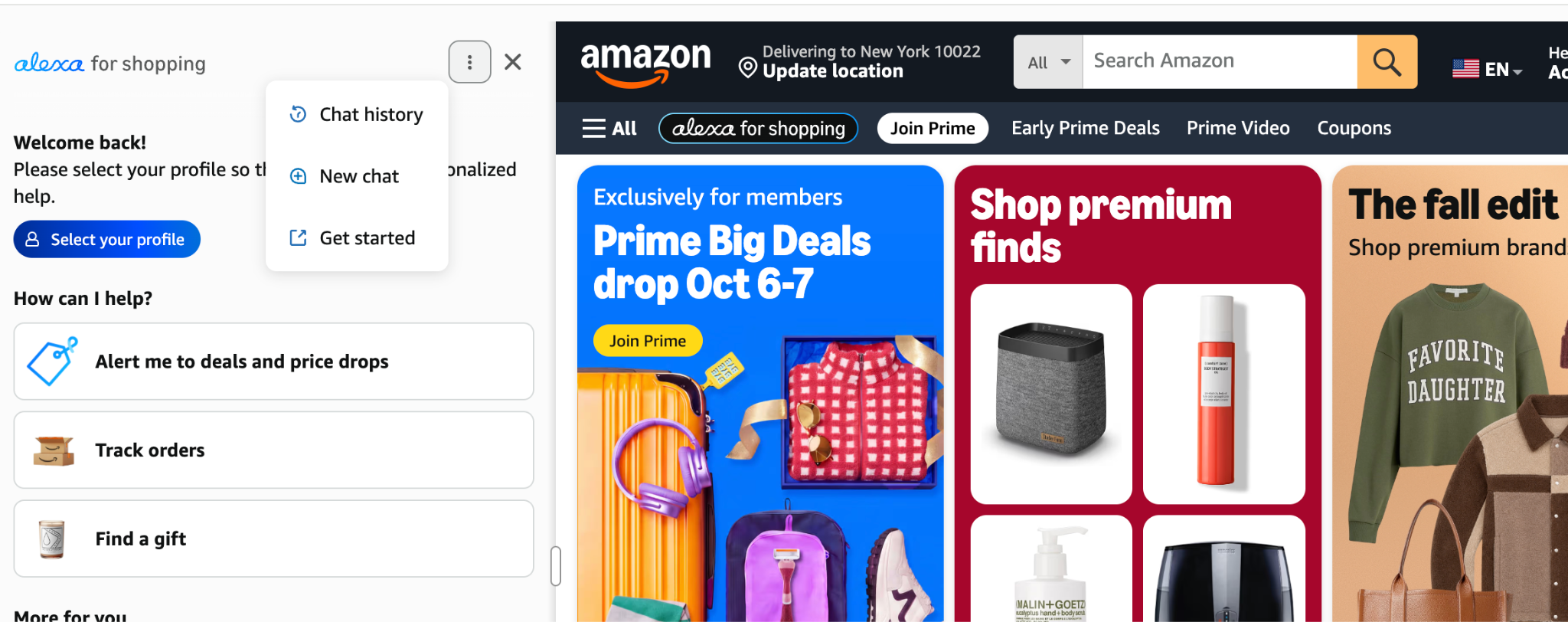
Do this first, before you search for anything. Open the shopping assistant, "Alexa for shopping". It opens as a tall rectangular panel on the left side of your screen, and it should stay open for the rest of this search and the following searches.
New chat is behind the three-dot menu, sometimes called the kebab menu, in the top corner of the assistant panel. Open that menu and choose New chat. This clears the previous conversation.
Do this before every search, including the first one. If you skip it your file will be rejected, because old conversations stay attached to the page.
Do not type anything into the assistant yet.
Step 2. Run the regular search
With the assistant still open on the left, type the search phrase into Amazon's regular search bar at the top of the page and press Enter. Your four phrases are listed on the "Your searches & uploads" tab of this study page, one per search number. Type the phrase exactly as it is shown there.
Do not add or remove words. You can click one of Amazon's search suggestions as you type, but only if it matches your assigned phrase exactly, with no extra or missing words.
If you mistype it and Amazon shows a "Did you mean" link above the results, check that the corrected phrase matches the one you were given. If it does, click it and carry on. If it suggests something different from your assigned phrase, ignore it and retype the phrase yourself instead.
Step 3. Scroll to the bottom of the search results
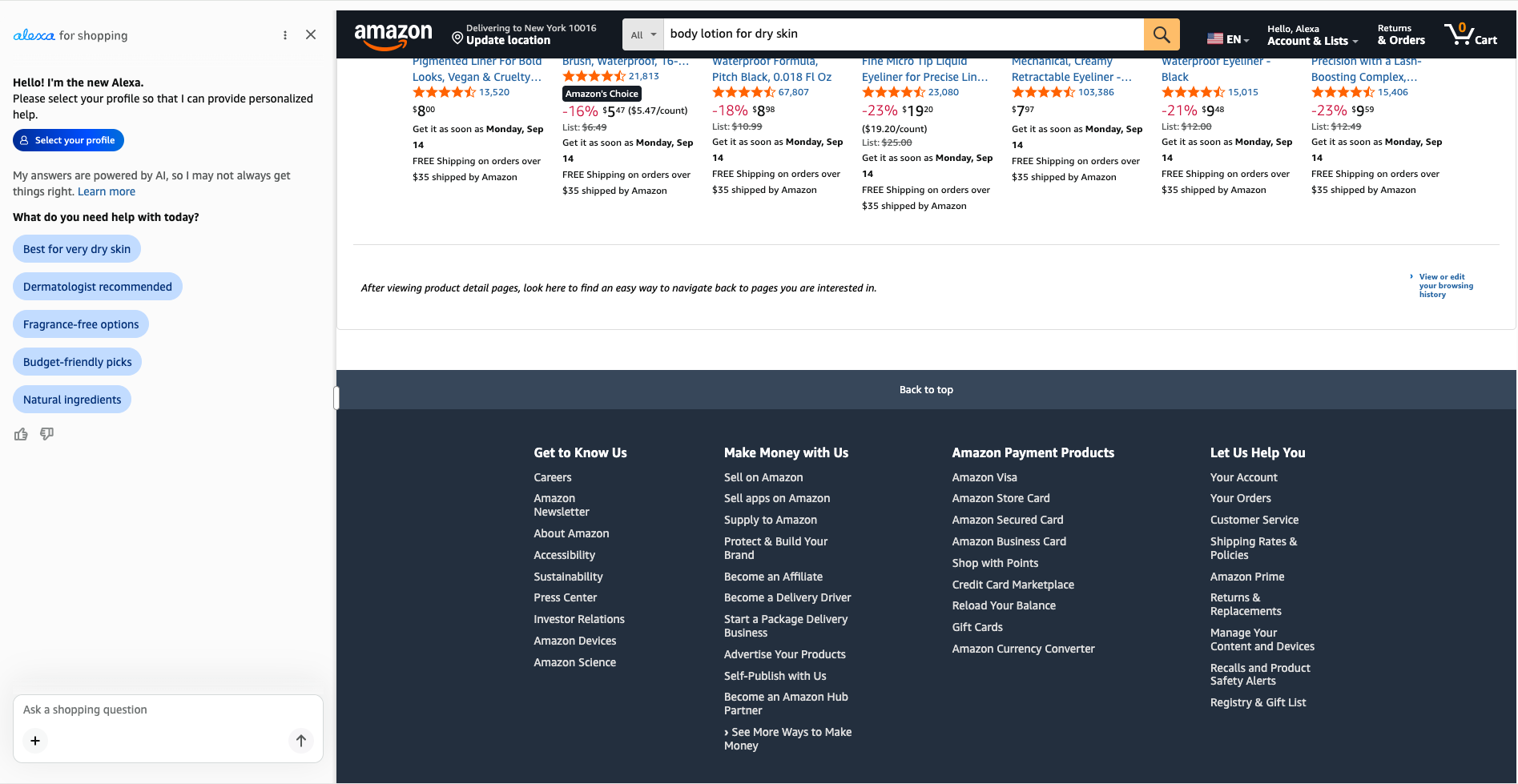
Scroll down the page of results quickly, taking about 3 seconds from top to bottom. Count "one, two, three" as you go. The easiest way is to drag the scroll bar on the right-hand side of the browser window down to the bottom. If you cannot see the scroll bar, move your mouse to the right edge of the page or scroll a little and it will appear. You can also use your trackpad or mouse wheel, as long as you scroll quickly.
Do not scroll slowly. Amazon keeps loading more products as you scroll, so going too slowly can keep adding results and you may never reach the bottom. Scrolling still matters: if you save the page too early, most of the products will be missing and your file will be rejected.
The aim is simply to load the entire page and reach the footer, the wide block of link columns at the very bottom that includes the terms of service and conditions of use links. Once you can see that, you are done scrolling.
What sits just above the footer varies from person to person. You might see a "Load more" button, numbered page links, or a section headed "Recommended based on your browsing history". Any of these is normal. Whichever you get, do not click it. Do not load more items and do not go to page two.
Step 4. Ask the shopping assistant the same phrase
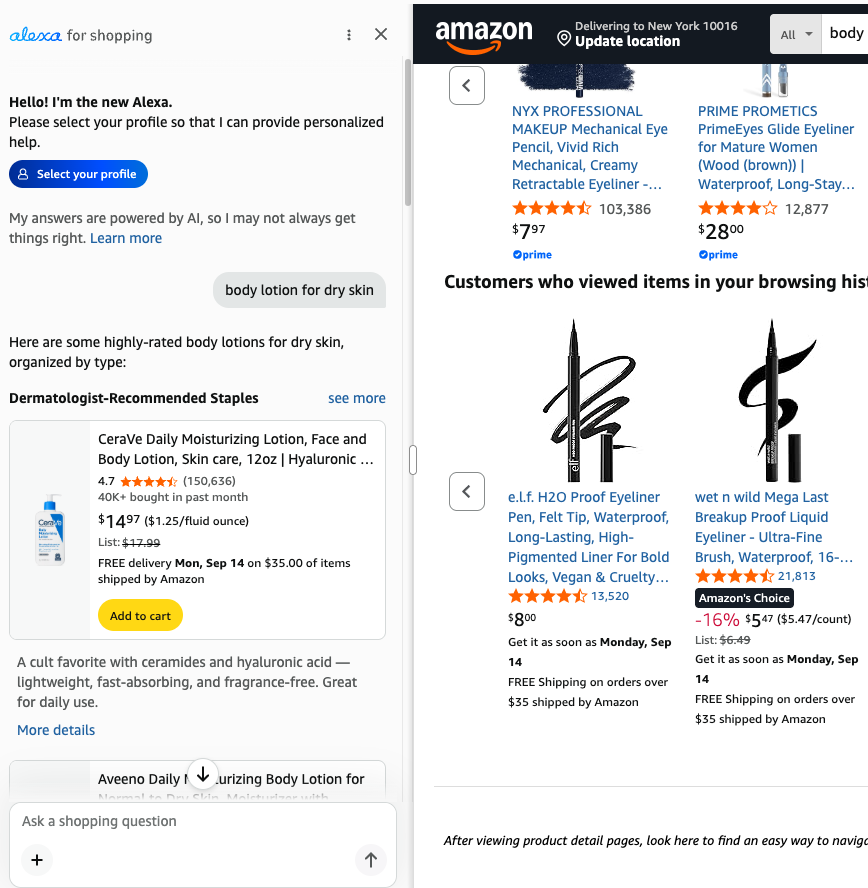
Now move into the assistant panel, the rectangle on the left of your screen that you opened in Step 1, and type the identical search phrase into it and click enter. Wait for it to finish answering. It may take a few seconds and the answer may build up in sections.
Do not ask follow-up questions, do not click any of the suggested question buttons, and do not click into a product. If you accidentally do, start a new chat and ask the phrase again.
Step 5. Scroll to the bottom of the assistant's answer
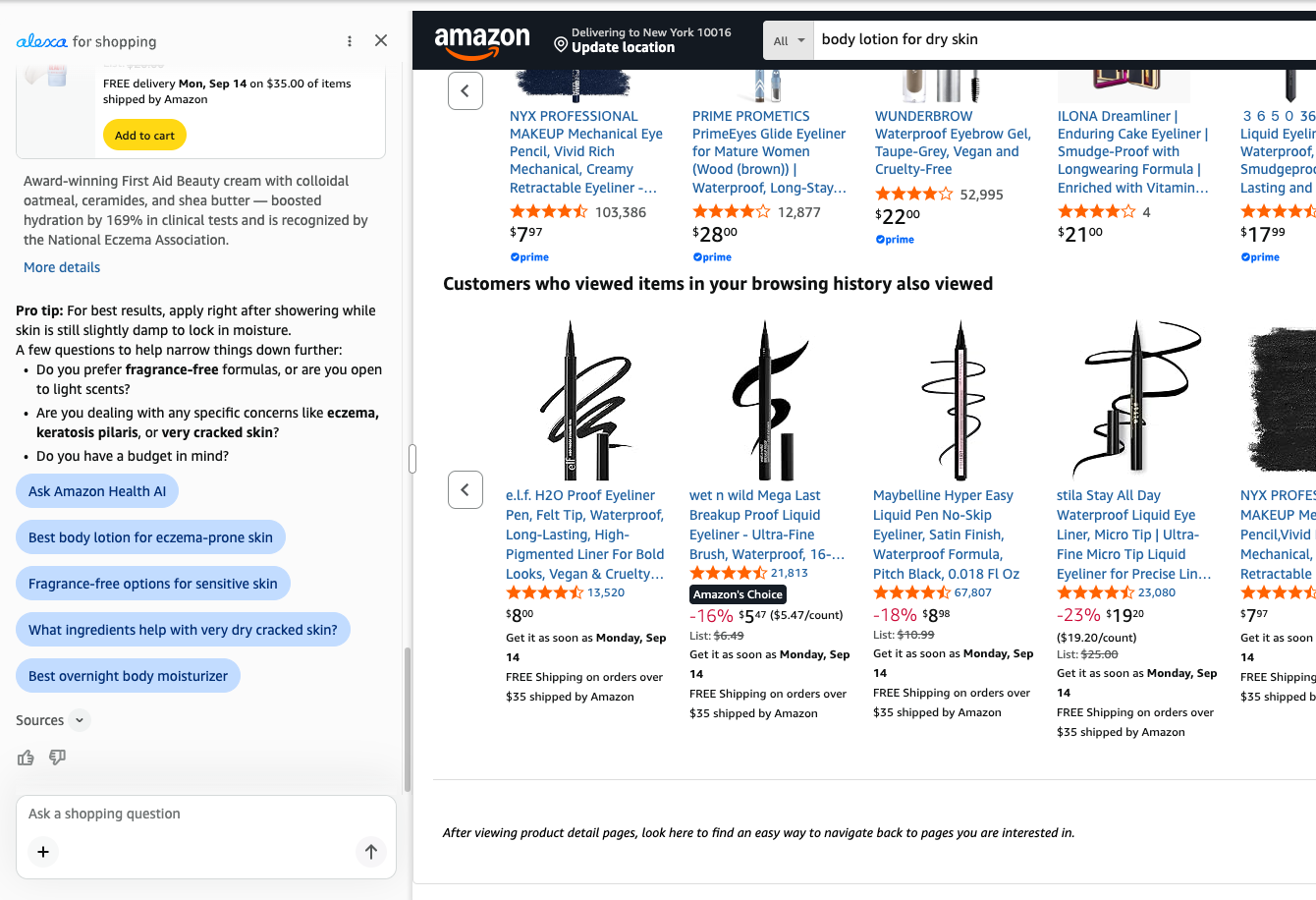
Scroll down inside the assistant's answer until you reach the end of it. The assistant often recommends more products than fit on screen, and anything you have not scrolled past may not be saved.
Step 6. Save the page
With the assistant answer still open on screen:
- Press Ctrl+S on Windows or Command+S on a Mac. You can also click the three-dot menu at the top right of Chrome and choose Save page as.
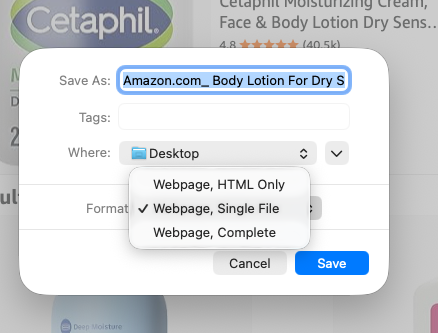
- In the Format dropdown at the bottom of the save window, choose Webpage, Single File. This is important. Do not choose "Webpage, Complete" or "Webpage, HTML Only".
- Optional: replace the suggested filename with the search number so you can find the file easily, like this:
search_01(first search) search_02(second search) search_03search_04 - Click Save. Remember where you saved it.
Chrome will save the mhtml file.
Step 7. Upload
- Return to this study page in your other Chrome tab.
- At the top of the page, click "Your searches & uploads".
- Find the search number you just completed (its phrase is shown in large text), click "Choose .mhtml file" and pick the file you just saved. Searches unlock in order: each one becomes available once the one before it has a green tick.
- A progress bar runs while the file uploads, usually 10 to 30 seconds. Keep the tab open until you see a green tick with the filename.
The page checks the file before accepting it: it must be a Webpage, Single File save from Amazon.com, it must be large enough to contain a fully scrolled page, the search phrase inside it must match that search number, and it cannot be a copy of a file you already uploaded. If a red message appears instead of a green tick, read it, fix the problem (usually by redoing that search), click "Replace file" and upload the new file.
If you close this page by accident, reopen it from the Prolific study link. Your phrases and any files that already have a green tick are kept, so you can carry on where you left off.
Step 8. Start a new chat before your next prompt
Once your first file shows a green tick, return to Amazon and start a new chat in the assistant panel using the three-dot menu. Starting a new chat only clears the conversation in the assistant panel. It does not affect the Amazon search bar.
There is nothing to clear or reset in the regular search bar. Just type your next assigned phrase into it and carry on from Step 2. Your previous search results will be replaced automatically.
Leave the assistant panel open. Repeat until all four prompts are done and uploaded.
A short checklist for your remaining searches is further down this page, after the two sections on what saved files and Amazon pages can look like.
When all four files show a green tick, your completion code appears at the top of the study page and you are taken back to Prolific automatically after a few seconds. If that does not happen, copy the code into Prolific or click Return to Prolific, and you are finished.
If things look odd
Your saved file will look broken when you open it. Missing images, navigation stacked down the left, a blank-looking bottom. That's normal. The information we need is still inside the file. Don't redo a search because of it.
Amazon may not match the photos here. It constantly tests different page versions, so buttons and wording may differ. Follow the steps as closely as your version allows.
Only redo a search if something went wrong on the live Amazon site, like the assistant erroring or realising you didn't scroll to the footer.
Quick Checklist:
Use this for your second, third and fourth searches, after you have been through the full steps above for the first one. Don't use it instead of the steps.
- Open the Alexa shopping Assistant, start a new chat and keep this side page open. Don't type anything here yet.
- Go back to Amazon's regular search bar and type the phrase provided to you, then click enter. Scroll quickly to the bottom of the results, taking about 3 seconds, using the scroll bar on the right or your trackpad.
- Go back to the open shopping assistant side page and ask it the same phrase, then click enter.
- Scroll all the way to the bottom of the assistant's answer.
- Press Control + S (Windows) or Command + S (Mac) and save the page as a Webpage, Single File.
- Return to this study page, click "Your searches & uploads" at the top, upload that file into the slot for that search number and wait for the green tick.
- Start a new chat in the Alexa Shopping Assistant before your next prompt. Skipping this is the one mistake that voids a file.
Common reasons files get rejected
These are the things that go wrong most often. All of them are avoidable.
| Problem | How to avoid it |
|---|---|
| Assistant opened after the search | Open it first, in Step 1, and leave it open |
| Saved before scrolling to the bottom | Scroll until the footer link columns are visible, then save |
| Extra Results Loaded | Do not click "Load more" or go to page 2 |
| Assistant answer not open when saved | Keep the assistant panel open on screen while saving |
| Wrong save format | Format must be Webpage, Single File |
| Same page uploaded more than once | Each file must come from its own fresh search |
| Previous chat not cleared | Choose New chat before every search |
| Search phrase altered | Type the phrase exactly as given |
| File uploaded into the wrong search slot | Check the search number and phrase before you click Choose .mhtml file. The page tells you if the phrase inside the file does not match |
Payment and corrections
- You are paid the base amount for completing all four searches and uploads.
- A bonus is paid when all four of your files pass our automated checks.
- The study page checks each file as you upload it and tells you straight away if something is wrong, so you can fix it before you finish. If a file fails a later check by our team, we will tell you which check it failed and give you one opportunity to redo that search and re-upload.
- Files that appear to be duplicates of one another cannot be corrected.
A note on your privacy
The saved page will include some personal details from your Amazon account, such as your first name where the site greets you and your delivery area. This is unavoidable because we need the page as you actually see it.
We remove these details automatically as soon as your file reaches us, before anyone on the research team looks at it. We do not keep your name, address, order history or payment information, and nothing identifying you appears in any published result. Please do not open your account pages, orders or payment settings at any point during the task.
If you would rather not share a page from your signed-in account, please return the task instead of completing it. There is no penalty.
If something goes wrong
If the assistant does not appear, gives an error, or the save option is missing, do not improvise. Message us through Prolific describing what you saw, and wait for a reply before continuing.
Your searches & uploads
These are your four assigned search phrases. Complete them in order, following the steps on the Instructions tab, and type each phrase exactly as shown, in both Amazon's search bar and the Alexa for shopping panel. Upload each saved .mhtml file into the matching search below.